Chrome Text Effect: How to Make It in Photoshop
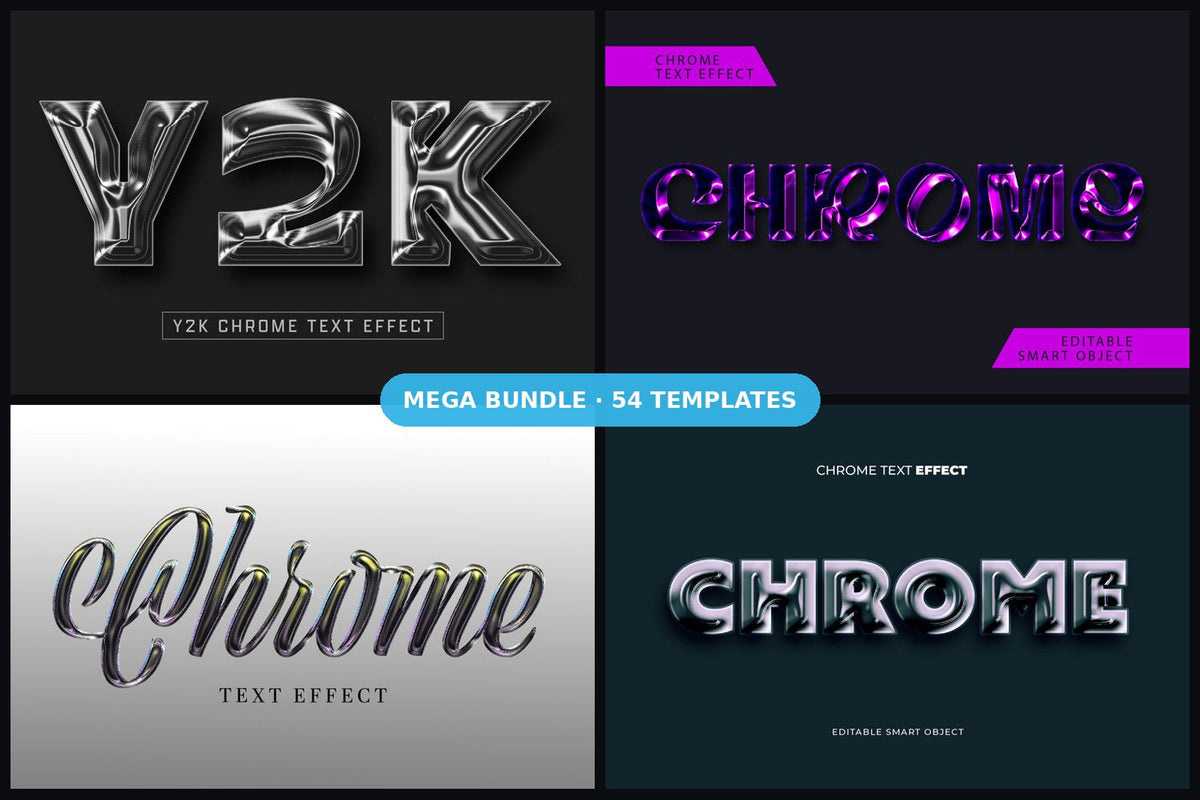
Chrome lettering is everywhere right now: Y2K posters, album covers, streetwear drops and YouTube thumbnails. This guide shows how a chrome text effect is built in Photoshop, and the fastest way to get a professional result in seconds.

How to make a chrome text effect manually
- Start with a bold font. Thick, rounded or wide letters reflect light better than thin ones. Set the text in white or light gray.
- Add a Gradient Overlay. Use a hard-stop gradient that alternates light and dark grays (a horizon line in the middle sells the reflection).
- Add Bevel & Emboss. Choose a smooth inner bevel with a high depth, and try a rounded or ring-shaped gloss contour to create those bright edge highlights.
- Add Satin and a thin Stroke. Satin adds liquid reflections; a 1–3 px gradient stroke gives the letters a polished rim.
- Finish with highlights and a background. A few small sparkles and a dark background make the metal pop.
Getting the reflections right usually takes a lot of trial and error, and every new word means adjusting the effect again.
The fast way: a chrome text template
With a ready-made PSDT template you skip all of the above: open the file, double-click the smart object, type your word and save. Lighting, reflections and bevels are already built. (First time with PSDT files? See how to open a PSDT file.)
Chrome styles to try
- Classic Chrome – polished, mirror-like metal.
- Chrome Glass – clear glass with metallic edges.
- Iridescent Balloon Chrome – rainbow, holographic reflections.
- Death Metal Chrome – dark, aggressive metal for rock and techno.
- Y2K Chrome – shiny 2000s club style.
- Chrome Text Effect Mega Bundle – 54 chrome styles in one download.

Prefer vector? The Chrome Text Effect and Cursive Chrome series are editable in Adobe Illustrator. See every style in 3D and chrome text effects, or use your headline on a poster with our 20 text effects for posters.
Find the right template in secondsEditable Photoshop, Illustrator and Canva templates with commercial license.
Browse templates